
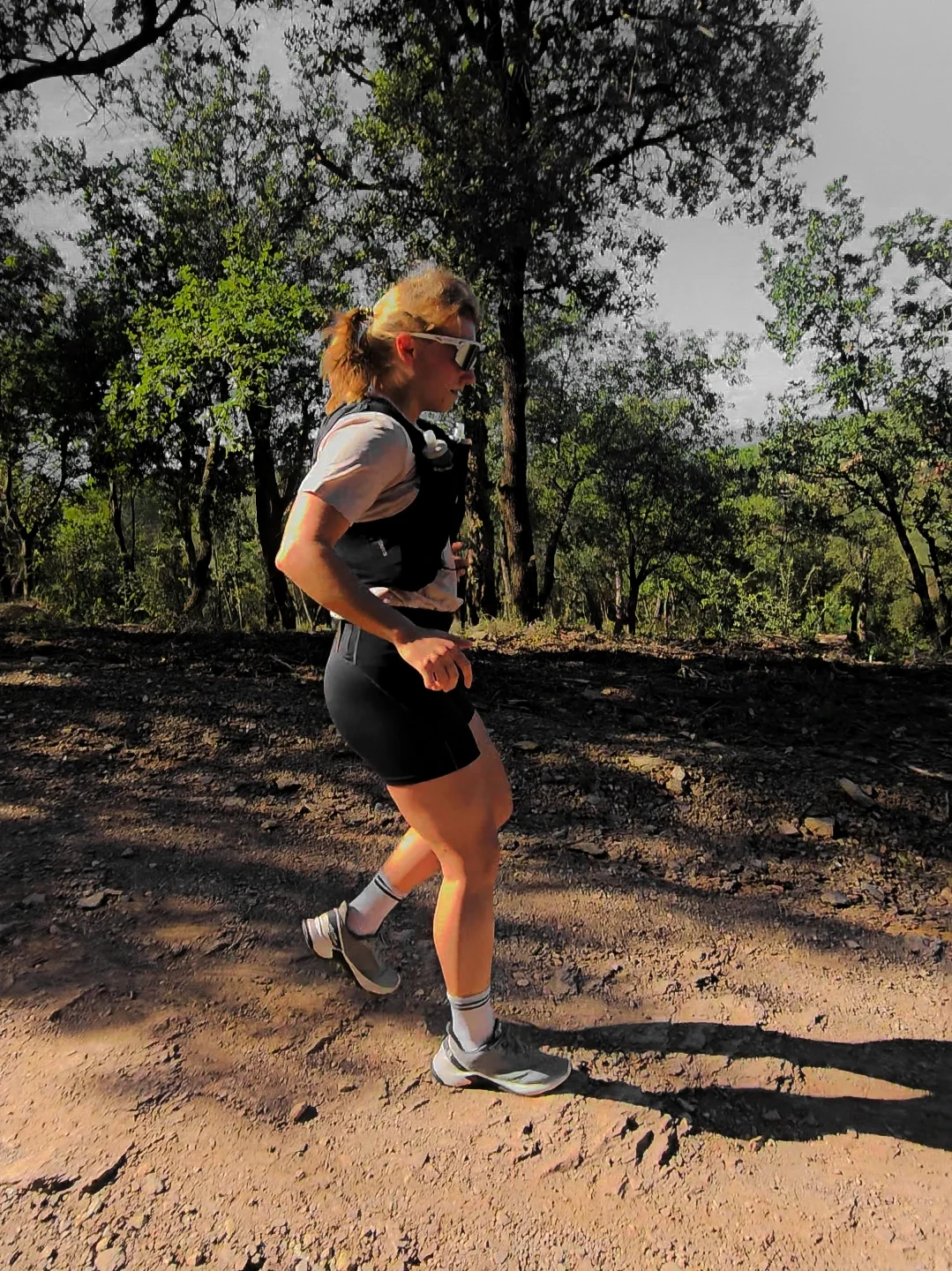
Trail Ultra training plan
- 16 weeks
- Running
- Duration
- 16 weeks
- Sessions
- 125 in total
- avg. 7.8 per week
- Training time
- avg. 10.6 h/week
- Peak week 13.4 h
- Key sessions
- 39 key sessions
How the training load develops
Training time per week over 16 weeks. The toughest week is week 11 with 13.4 h.
Plan structure
125 sessions spread over 16 weeks, around 170 hours of training and a total load of 10,348 TSS.
- Running 95 sessions 1,203.9 km in total
- Strength training 30 sessions
| Week | Sessions | Sports | Time |
|---|---|---|---|
| 1 | 8 3 Key |
|
9.8 h |
| 2 | 8 3 Key |
|
10.3 h |
| 3 | 8 2 Key |
|
6.7 h |
| 4 | 8 3 Key |
|
10.8 h |
| 5 | 8 3 Key |
|
11.8 h |
| 6 | 8 2 Key |
|
7.4 h |
| 7 | 8 3 Key |
|
12.4 h |
| 8 | 8 2 Key |
|
13.2 h |
| 9 | 8 2 Key |
|
8.2 h |
| 10 | 8 2 Key |
|
12.7 h |
| 11 | 8 2 Key |
|
13.4 h |
| 12 | 8 2 Key |
|
8.7 h |
| 13 | 7 3 Key |
|
12.7 h |
| 14 | 8 3 Key |
|
11.7 h |
| 15 | 8 3 Key |
|
8.1 h |
| 16 | 6 1 Key |
|
11.6 h |
A look inside the plan
Sample week: week 13 of 16
This is exactly how your plan will look in the Aspect App after you buy it. Tap a session to see its structure, intervals and target ranges.
You can also download run workouts as FIT files for Garmin, Wahoo, COROS and others, or as ZWO files for Zwift.
Week 13 Peak 1 7 sessions 12:41 h 93.5 km 3
About this training plan
A trail running training plan for runners with ultra experience who want to finish faster over up to 68 km and around 3,000 m of climbing. Flat sessions are run by pace, the terrain – and with it most of your running time – by feel, with six running days, uphill threshold work, long back-to-back weekends and fuelling tests, so you can still push on in the second half of the race, where others fade.
Who the plan is for
You run 60 to 80 km or 7 to 10 hours a week over six days and have finished at least one ultra or mountain marathon. An easy 195-minute run off-road is routine for you, because that is where the long run starts. If six running days are too many for you, or this is your first ultra, Level 2 is the better choice.
How the plan works
Tuesday is flat threshold, Wednesday an easy run or downhill technique, Thursday the hard hill session, Friday a short run plus a strength session, and Saturday and Sunday the long runs; Mondays are for stretching. Time on your feet and climbing grow in steps, with every third week a recovery week.
- Build Phase 1: Long runs from 195 to 210 minutes, one-minute hill repeats by feel, threshold 3 x 8 and 4 x 8 minutes.
- Build Phase 2: Back-to-back weekends of up to 145 and 235 minutes, downhill technique, uphill threshold 3 x 6 and 4 x 6 minutes, walking the climbs with poles.
- Build Phase 3: Uphill threshold 3 x 8 and 3 x 10 minutes, downhill technique 6 x 4 and 7 x 4 minutes, back-to-back up to 165 and 280 minutes.
- Race-Specific Phase and Peak: Hill strength endurance up to 2 x 20 minutes, fuelling tests with 60 to 90 g of carbohydrate per hour, a race simulation and the longest run of 330 minutes with around 2,200 m of climbing three weeks before the race.
- Taper and Race Week: Volume drops in two steps, and openers three days before the race keep your legs sharp.
What you need before you start
- A recent 10 km test at full effort on a flat course, or the values from a lab performance test. Your threshold pace roughly matches your 10K pace, and every pace target on the flat is based on it.
- A GPS running watch with a pace display; you don’t need a chest strap.
- Trail shoes with good grip, a running vest with bottles, poles if your race allows them, and your race’s mandatory kit.
- A climb with at least 300 m of continuous ascent, or, for the uphill time, a treadmill with an incline as a substitute; for the descents you need real terrain.
Support within the plan
Weekly briefings explain each phase, and cues in the sessions tell you when to walk, eat or drop a block. Coaching notes on pacing off-road by perceived exertion, on kit and safety, downhill running, walking the climbs with poles, terrain and weather, fuelling, the course profile, drop bags and mandatory kit guide you all the way to the checklist on the day before the race. Mental coaching prompts help you set your race plan from the course profile and your long runs, and put heavy legs during the taper into perspective.
Which level is right for you?
- Level 2: You run 40 to 55 km a week over five days, have completed more than 30 km off-road or a marathon, and want to get safely to the finish of your trail ultra. Long run up to 300 minutes, up to 3,040 m of climbing a week.
- Level 3: You run 60 to 80 km a week over six days, have finished an ultra or a mountain marathon, and want to get to the finish faster. Long run up to 330 minutes, up to 3,430 m of climbing a week and around 25% more climbing than Level 2 over the whole plan, plus a second hard hill session.
If you have never run more than 30 km off-road or a marathon, you are better off starting with the Trail Half Marathon plan and coming back afterwards.
Intensity guidance
Your training thresholds
Session intensity is based on your personal thresholds. After buying, you enter them in the Aspect App – the plan then converts every target for you. If they’re already stored in Intervals.icu, you can import them with one click during setup. Here’s how to find your values:
- Perceived exertion (running)You don’t need any measurements for this: intensity is given on the Borg scale from 6 (no exertion) to 20 (maximal exertion). You run by feel.
- Threshold pace (running)Your threshold pace is the pace you can sustain for about 60 minutes – roughly your 10K to half-marathon pace. How to find it: after a good warm-up, run on your own for 30 minutes as fast as you can hold evenly. Your average pace over the last 20 minutes is your threshold pace.
Device sync via Intervals.icu
Your plan on your watch
Send your plan to your free Intervals.icu calendar in just a few clicks. From there, your run sessions go to your watch as structured workouts with intervals and target ranges – or into Zwift. No retyping and no file imports.
Ready in six steps
- Buy the planOnce your payment has been received, you’ll get your access link by email.
- Save it to your Aspect accountWith a free Aspect account, you save the plan under “My plans”.
- Connect Intervals.icuTap “Intervals.icu” at the top of your plan and connect your free account on intervals.icu (opens an external site). No account yet? You can create one there in a minute.
- Match your target valuesThe app checks whether Intervals.icu holds the same values as your plan (e.g. FTP, threshold heart rate or threshold pace). Any differences can be matched with one click.
- Choose a start date and sendChoose your start Monday, check the preview, send.
- Connect your deviceIn Intervals.icu, go to Settings → Connections, connect your device or platform and enable uploading of planned workouts (e.g. “Upload planned workouts”).
What arrives where
| Platform | What arrives |
|---|---|
| Garmin | Running as structured workouts; strength: title only, no exercises (supported) |
| Zwift | Run workouts (supported) |
| Suunto | Planned workouts (watches with SuuntoPlus Guides) (supported) |
| COROS | Planned workouts – the first time only, drag the “Intervals.icu” training plan into your calendar in the COROS app. (supported) |
| Huawei | Only the next run session at a time (sent to the watch in the Huawei app) (limited) |
| Apple Watch | No official integration – only via third-party apps (e.g. Watchletic – the Intervals.icu import is a paid feature) (limited) |
| Polar | No direct transfer (not supported) |
- Most services receive roughly the next 7 days at a time. The complete plan is in your Intervals.icu calendar.
- Intervals.icu calculates the target ranges from your values there (e.g. FTP, threshold HR, threshold pace). If you change them, upcoming workouts are adjusted with the next sync.
- During setup, the Aspect App checks whether your values in Intervals.icu match your plan. You resolve any differences with one click – in either direction, with a side-by-side comparison first.
- If you move a session within its week in the Aspect App, Intervals.icu updates automatically – and so does your device at the next sync.
- Zwift uses the values in your Zwift profile (FTP, 5K time). Enter the same values there as in Intervals.icu.
- Strength sessions appear in the Intervals.icu calendar with a description and planned duration. On your watch they only show their title. You’ll find the exercises in the Aspect App.
In the Aspect App you can also download run workouts as FIT files (e.g. for Garmin, Wahoo, COROS) or as ZWO files for Zwift.
What you get
- The complete 16-week plan125 sessions, structured week by week and day by day.
- All sessions in the Aspect AppEvery session with its full structure. In the browser on your smartphone, tablet or computer.
- Flexible within your weekIf a day doesn’t suit you, you can use a free Aspect account to move sessions to another day within the plan week or change their order – by drag & drop on a computer, or via “Move to…” on a smartphone. You can restore the original order at any time. If you’ve sent the plan to Intervals.icu, it is updated there automatically.
- Straight to your watchAs structured workouts via your free Intervals.icu account – to Garmin, COROS, Suunto & more. Or as a FIT/ZWO download. How it works
- 39 marked key sessionsThe sessions that matter most in each week. They take priority if you need to reschedule.
- Access with or without an accountPersonal access link by email. With a free Aspect account, saved permanently under “My plans” – and ready to send to your watch.
How it works
- OrderAdd the plan to your basket and pay with PayPal, card and more (via Stripe) or by bank transfer.
- Check your inboxOnce your payment has been received, you’ll get your personal access link.
- Open your planThe link opens your plan straight in the Aspect App – nothing to install.
- Save it to your accountOptional and free: save the plan to your Aspect account and open it again at any time.
- Get it onto your watchOptional: send it to your calendar via Intervals.icu with your start date – and from there to your watch. Here’s how

Created by your coach
Hi, I’m Alex – coach and the mind behind aspect®. My training plans grow out of my endurance coaching work in triathlon, cycling and running. If you’d rather have individual coaching than a ready-made plan, take a look at 1:1 coaching.
Frequently asked questions
How do I get the training plan after purchase?
Once we’ve received your payment, you’ll get an email with your personal access link. Use it to open the plan directly in the Aspect App – in the browser on your smartphone, tablet or computer. You’ll also receive your invoice by email.
How does the plan get onto my watch?
Via Intervals.icu. Open your plan in the Aspect App, tap “Intervals.icu” at the top and follow the steps: connect your free Intervals.icu account, match your target values, choose your start Monday, check the preview and send the plan to your Intervals.icu calendar as structured workouts. From there, Intervals.icu sends the upcoming sessions to Garmin, Zwift, Suunto and COROS – to set this up, go to Settings → Connections in Intervals.icu, connect your device or platform and switch on the upload of planned workouts (e.g. “Upload planned workouts”). Zwift uses the values in your Zwift profile (FTP, 5K time). Most services receive roughly the next 7 days at a time.
Does it work with the Apple Watch?
Not directly: there’s no official Intervals.icu integration for the Apple Watch. It’s only possible via third-party apps (e.g. Watchletic – the Intervals.icu import is a paid feature). Polar isn’t supported directly either. You can still see all your sessions in the Aspect App at any time – including in your smartphone’s browser.
Does Intervals.icu cost anything?
No. A free Intervals.icu account is all you need for the transfer. Intervals.icu also offers an optional supporter subscription – you don’t need it for this. Transferring from the Aspect App doesn’t cost anything extra either.
Do I have to keep my values up to date in two places?
No. In the plan view, the “Match target values” step (“Intervals.icu” button) checks whether Intervals.icu holds the same values as your plan – FTP, threshold HR, threshold pace or swim threshold pace (CSS), depending on what your plan uses. If anything differs, you see both values side by side, choose which one applies for each, and match them with one click. Nothing is overwritten without asking. To do this, you confirm access to your Intervals.icu sport settings once when connecting. Your indoor FTP stays unchanged, and HR zones are only recalculated if you explicitly ask for it. Zwift still uses the values in your Zwift profile.
Do I need an account in the Aspect App?
Not to view it: the access link also works without an account. With a free Aspect account, you save the plan permanently under “My plans” – and only then can you transfer it to your watch via Intervals.icu.
When can I start the plan?
Whenever you like. The plan isn’t tied to a date but built in weeks (week 1 to 16), and each week starts on a Monday. If you have a race in mind, simply count back 16 weeks from race day. For the transfer to Intervals.icu, you choose your start Monday yourself – the Monday of the current week at the earliest.
What happens if I start later or need to reschedule?
No problem. If you want to start the whole plan later, simply choose a new start date in the plan view under “Intervals.icu” → “Reschedule” – the sessions are moved in your Intervals.icu calendar without any duplicate entries. If you no longer need the plan there, you can remove it again. Your own entries in Intervals.icu remain untouched. If just a single day doesn’t work, move the session within its week (see the next question).
Can I move sessions to other days?
Yes, within the plan week in question. With a free Aspect account, you can move a session to another day of the same week in the plan view or change the order within a day – by drag and drop on a computer, or via the “Move to…” menu on each session on a smartphone. The plan itself stays unchanged: moved sessions are marked with a small icon (e.g. “originally Tuesday”), and “Reset week” or “Reset whole plan” restores the original order. If the plan has been transferred to Intervals.icu, moves and resets are applied there automatically – and to your watch at the next sync. If you move a transferred session within its week directly in the Intervals.icu calendar, the Aspect App picks this up (it can take about a minute). If a session ends up outside its plan week there, the app moves it back to its week and lets you know. Without an account, you can view the plan but not move sessions.
Is the plan tailored to me personally?
No – it’s a ready-made training plan that works for many athletes with a similar goal. If you’d like individual support, you’ll find 1:1 coaching at aspect-sports.com.
Do I have a right of withdrawal?
The training plan is digital content. With your express consent, it is made available before the withdrawal period has expired – your right of withdrawal then expires when provision begins (Section 356(5) of the German Civil Code, BGB). You’ll find the details in our withdrawal policy.
Trail Ultra (RPE)
16 weeks · 125 sessions · €54.00 (final price*)
More training plans
All plans
- Duration
- 12 weeks
- Per week
- Avg. 10.8 h · 7–8 sessions
- Guided by Bike
- Power or heart rate (your choice)
- Devices
- Garmin, Wahoo, COROS & more via Intervals.icu
- Duration
- 12 weeks
- Per week
- Avg. 8.4 h · 6–7 sessions
- Guided by Bike
- Power or heart rate (your choice)
- Devices
- Garmin, Wahoo, COROS & more via Intervals.icu
- Duration
- 12 weeks
- Per week
- Avg. 6.3 h · 5–6 sessions
- Guided by Bike
- Power or heart rate (your choice)
- Devices
- Garmin, Wahoo, COROS & more via Intervals.icu